RotoSpider manual › Set up your factory's data
Enter your molds and products
Describes RotoSpider Desktop 0.8.14 · checked 2026-09-13 D5
RotoSpider thinks in molds. A product is what a mold makes; the layout places molds. Enter one row per mold type you own, named so that your planners recognise the product.
The Mold Data tab
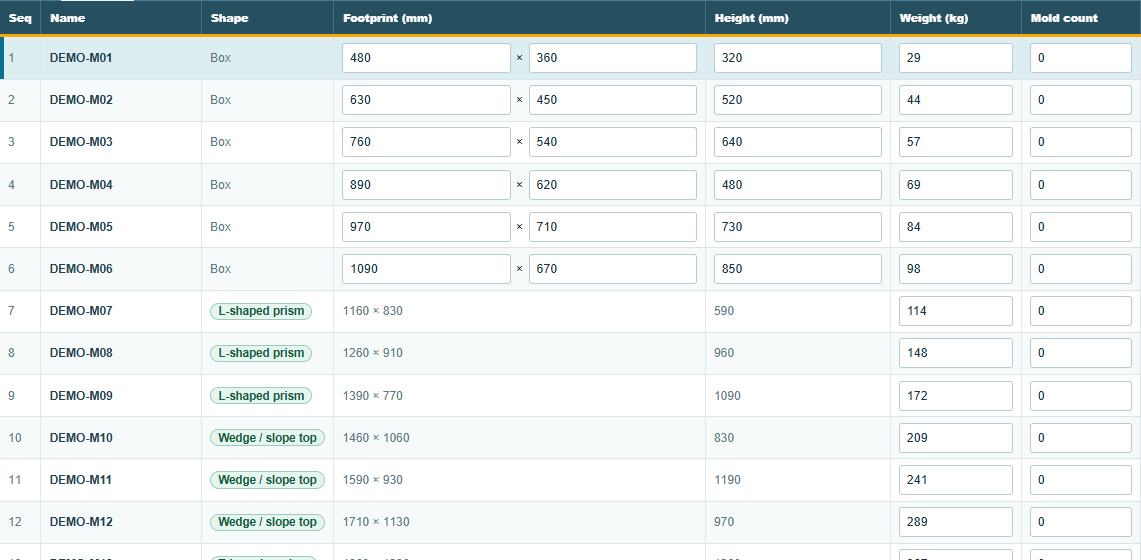
One row per mold, with Seq and Name identifying the workbook row, the Shape, the Footprint (mm) as length by width, the Height (mm), the Weight (kg), and the Mold count, how many of this mold you own. A box's footprint and height are typed straight into the cells; a mold with another shape shows its footprint and height as read-only numbers that come from the shape, and you change them through Change Shape:

The preview on the right draws the selected mold with its three measurements; click a row to select it, drag to turn it:
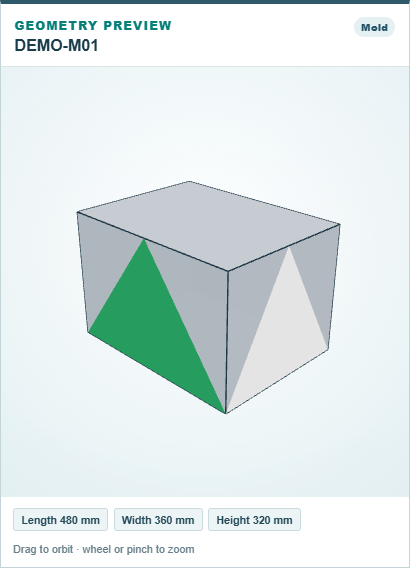
Save writes the grid to the workbook after the overwrite question, as on the arm tab.
The columns in the workbook
| Column | What it is | Unit |
|---|---|---|
Seq |
A number that identifies the row; keep it stable once layouts exist | whole number |
Name |
The mold's name as your planners know it | text |
LengthCm, WidthCm, HeightCm |
The mold's outside size when closed: footprint length and width, and height | centimetres in the workbook, shown as millimetres in the app |
WeightKg |
The mold's weight, empty and all; needed for the balance and the arm's load limit | kg |
Size |
Optional: a cylinder is written as Ø121x176, diameter by height, with the three size columns empty |
cm |
FootprintShape |
Circle for a cylinder; empty for a box |
text |
Color |
Optional display colour such as #ADB4BE; the app fills it in when empty |
text |
MoldCount |
How many of this mold you own | whole number |
GeometrySourceKind, ShapeDefinitionId, GeometryAssetId, GeometryAssetRevision |
Written by the app when a mold gets a built or imported shape; never typed by hand |
The Chinese headers are read as well. Measure the mold closed, at its widest and tallest, including the frame and any clamps that stay on it in the oven; that is the space it takes on the plate.
Shape
Every mold starts as a box of its footprint and height, and a box is often enough. When the real mold is far from a box, an L, a wedge, a cylinder, a tank with a taper, the layout can win room by knowing the real outline; the chapter on choosing a shape says which shape fits which product and how to build each. Change Shape on this tab is where that starts.
Need and mold count
Mold count on this tab is what you own. Need, on the layout tab, is how many parts you want from this mold in the layout you are making, from 0 to 99; it belongs to the layout, not to the workbook:
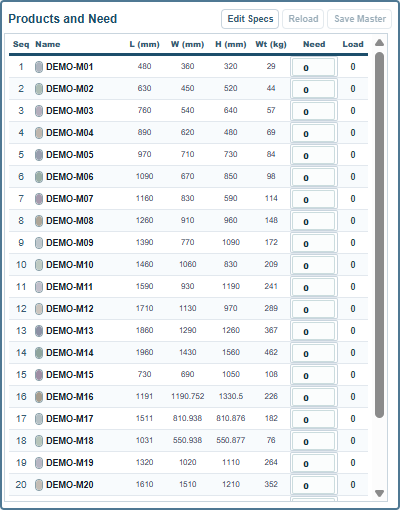
Load beside it shows how many the layout placed, and the mark after it says whether one more copy would still fit.
Changing a mold for one layout only
On the layout tab, Edit Specs in the header of Products and Need opens the mold's dimensions for editing inside that layout. Use it to try a different size without touching the workbook: the layout is recomputed with the new numbers. Reload puts the workbook's numbers back; Save Master writes the changed numbers into the workbook for every layout that follows.
Comments and questions
The app's rules are our reading of the physics; where your plant knows better, the app changes.