RotoSpider manual › Reference
Mouse, keyboard and touch
Describes RotoSpider Desktop 0.8.14 · checked 2026-09-13 D5
Every gesture the layout tab understands, in one place. The scene and the plan views take the same ideas: click to select, drag a handle to move, drag the ring to turn, drag to the staging area to unmount. The app shows no legend for these on screen; this page is it.
In the 3D scene
| Do this | And this happens |
|---|---|
| Drag on empty space | The camera orbits around the arm. |
| Scroll the wheel, or pinch | The camera zooms. |
Reset view |
The camera goes back to its starting view, and the arm stops and re-seats. |
Pause rotation / Play rotation |
The arm stops turning, or turns again. It cannot turn while a mold is kept outside the envelope. |
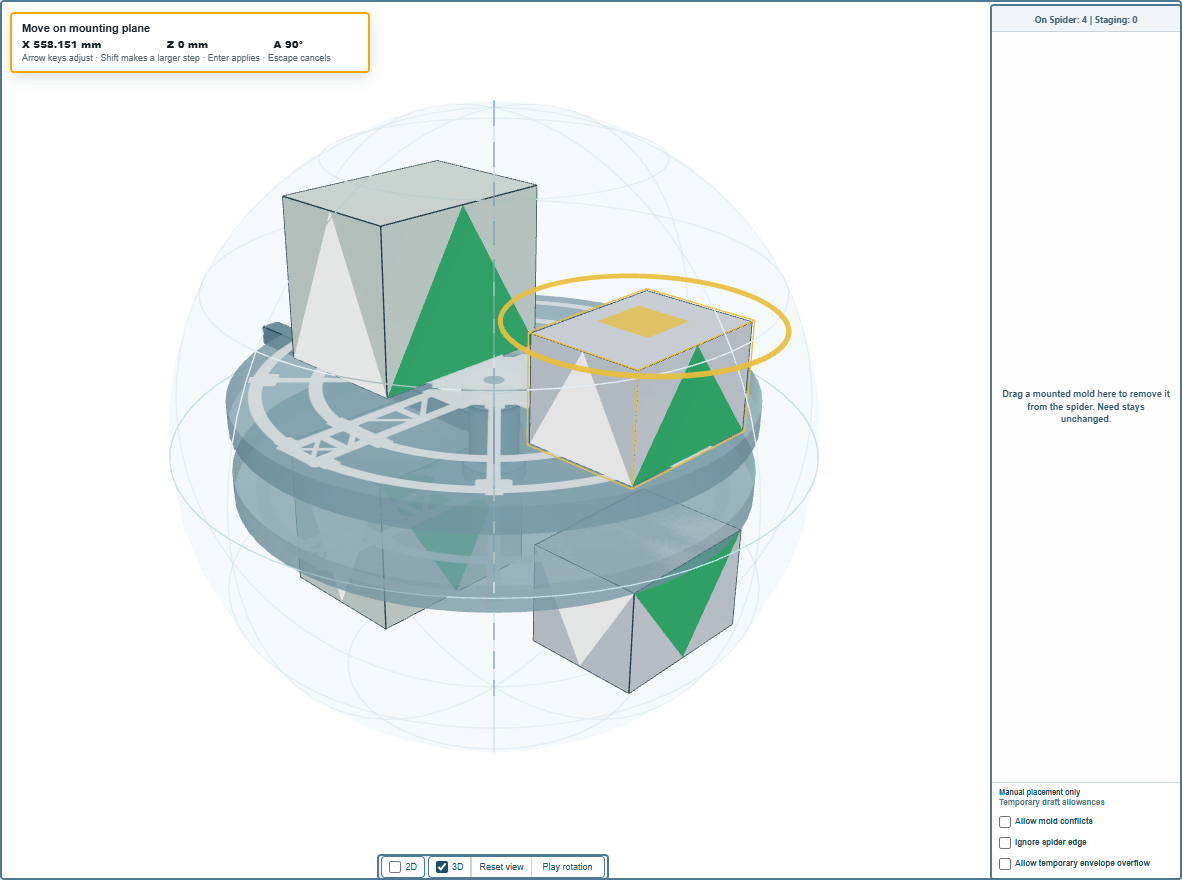
| Click a mold | The mold is selected; a square handle appears at its centre and a yellow ring around it. |
Click empty space, or press Escape |
The mold is deselected. |
| Drag the square handle | The mold slides on its plate; the position under the pointer is checked as you go, and letting go over a legal spot commits it. |
| Drag the square handle into the staging area | The mold comes off the spider; Need is unchanged. |
| Drag the yellow ring | The mold turns about its centre, to any angle. Hold Shift to turn in steps of 15 degrees. |
| Click a mold in the staging area, then drag it onto a plate | The mold goes back on the spider where it lands, if the spot is clear; while you hold it there the app says whether it is. |
The scene cannot move a mold from one spider of a straight arm to the other; the plan views do that.
In the plan views (2D)
| Do this | And this happens |
|---|---|
| Drag on empty space | The plan pans. |
| Scroll the wheel | The plan zooms about the pointer. |
| Two fingers on a touch screen | The plan zooms about the midpoint. |
| Click a mold | The mold is selected. |
| Press and drag a selected mold | The mold moves; a first press only selects, the second press moves. |
| Drag a mold from one plan into the other | On a straight arm, the mold moves to the other spider when you let go; the status line says Release to move the mold to this spider. |
| Drag a mold onto the staging area | The mold comes off the spider. |
| Drag the ring's knob | The mold turns; Shift for 15-degree steps. |
| Click empty space | The mold is deselected. |
With the keyboard
A selected mold in the scene, with the scene focused:
| Keys | Effect |
|---|---|
← → ↑ ↓ |
Nudge the mold 10 mm on its plate. |
Shift + arrow |
Nudge 50 mm. |
Enter |
Apply the nudged position. |
Escape |
Cancel the nudge, or cancel any drag in progress, or deselect. |
The ring in a plan view, when it has focus:
| Keys | Effect |
|---|---|
← → |
Turn the mold by one degree. |
Shift + ← → |
Turn by fifteen degrees. |
Escape |
Cancel the turn. |
The Move on mounting plane panel at the top left of the scene shows the mold's X, Z and angle A while you nudge, with the reminder Arrow keys adjust · Shift makes a larger step · Enter applies · Escape cancels.
What every gesture has in common
A move or a turn is committed only when the position is legal: the clearance kept, the foot on the plate, the mold inside the envelope and out of the dead height. Letting go anywhere else puts the mold back, and the status line at the top says why, for instance No room here: Too close to another mold. The three allowances under the staging area relax this for a draft, on the allowances page; Undo steps back through everything you did, on the undo page.
Comments and questions
The app's rules are our reading of the physics; where your plant knows better, the app changes.