RotoSpider manual › Set up your factory's data
Prepare the master data workbook
Describes RotoSpider Desktop 0.8.14 · checked 2026-09-13 D5
RotoSpider works from one Excel workbook, the master data. It holds your machines with their arms and your molds. The trial comes with a sample workbook; you replace its rows with your own, in Excel or on the app's two data tabs, and every layout you make reads from it.
Where the workbook is
The first start copies the trial workbook into the trial's data folder, and the app keeps using that file. On Windows it is data\trial\masterdata.xlsx in the working folder you unzipped the trial into (Install the desktop trial); on macOS and Linux it is Documents/RotoSpider/trial/masterdata.xlsx.
The Mold Data and Spider / Arm Data tabs show which file is loaded, with Open data folder beside it, and a generation number that goes up each time the app saves it. The long code after it is the file's fingerprint; the app uses it to notice when the file changed outside the app.

What is in it
Two sheets. The machines sheet has one row per machine model with the arm's measurements, one column per parameter; the molds sheet has one row per mold with its size, weight and count. The column headers can be in English or Chinese; both are read. The pages Set up a machine and its arms and Enter your molds and products go through every column.
The Sources sheet of the trial workbook is a note on where the sample numbers came from. It is not read by the app, and your own workbook does not need it.
Two ways to edit it
In the app. Type in the cells of Spider / Arm Data or Mold Data. The page shows Unsaved edits and enables Save as soon as a cell changes:

Save asks before it writes the file:
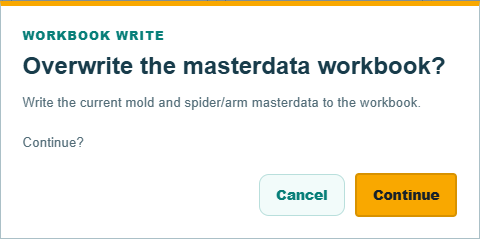
Continue writes the current mold and arm data to the workbook, the page reports "Saved and reloaded generation" with the new number, and every open layout is refreshed from the saved data. Cancel keeps your edits on the page without writing. If the file was changed in Excel while you had unsaved edits, the app keeps your edits and tells you; Reload on the layout tab then takes the file as it is on disk and drops the edits.
In Excel. Close nothing; edit the workbook, save it, and press Reload on the layout tab, in the header of Products and Need:

The three buttons there belong to the layout, not to the data tabs: Edit Specs changes a mold's dimensions for the current layout only, Reload takes the workbook from disk again and discards such changes, and Save Master writes the layout's changed dimensions into the workbook. The page on molds explains when to use them.
Keep a copy
The app writes the workbook in place. Before you replace the sample rows with a factory's real data, keep a copy of the file somewhere else; the app does not keep old versions.
Comments and questions
The app's rules are our reading of the physics; where your plant knows better, the app changes.