RotoSpider manual › Edit a layout yourself
Keep and reopen layouts
Describes RotoSpider Desktop 0.8.14 · checked 2026-09-13 D5
Every layout you work on is a tab of its own, and every tab can be saved to a file and opened again. The file is yours, on your own machine; nothing about your molds or your production leaves it.
Tabs

After the three data tabs, each open layout is a tab, Layout 1, Layout 2 and so on, named after the layout's own name. A dot after the name means the layout has changed since it was saved. You can keep several open at once and move between them, which is how you compare two answers to the same question side by side.
New and Close
New opens a fresh layout beside the one you have, with the same molds and machines behind it and nothing requested yet: the selected machine, the clearances and the unit carry over, Need does not.

Close closes the current layout's tab. A layout with unsaved changes asks first, Discard unsaved layout changes?, with Cancel and Discard changes.
Save
Save writes the layout to a file: what you asked for, which machine, the clearance settings, any mold sizes you overrode with Edit Specs, and the arrangement that came out, including positions you set by hand. It is available once the layout has been computed, and it refuses a layout that still carries a draft warning from an allowance; repair the warning first.
It asks for the layout's name first, which is the name the tab shows and the name stored in the file, then where to put the file:
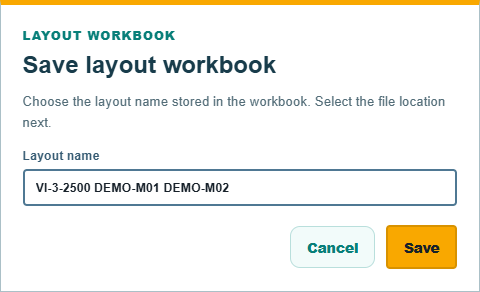
The file is an Excel workbook, so the request and the placements can be read in Excel; it is not the master data workbook and does not change it. After saving, the status at the top reads Saved <file>. and the tab loses its dot.
Open
Open brings a saved layout back as a new tab beside the ones you have, named as it was saved, with Opened <file>. at the top:

The layout opens with the arrangement it was saved with, on the machine it was saved with, and with the mold sizes it was saved with.
When the master data changes
A layout is computed against the workbook as it was when the layout was made. After you save changes to the workbook, from the data tabs or with Save Master, every other open layout shows a Stale mark on its tab and a banner: the layout's result is preserved until you press Refresh, which recomputes it against the current data. A stale layout cannot be recomputed or edited until then.
Recovery between sessions
A crash or a closed window loses nothing. The app keeps a recovery copy of every open layout as you work; Layout recovery saved at the top right says the copy is current, and Saving documents… shows while it is being written. On the next start the open layouts come back as they were. This is a safety net, not a file: a layout you want to keep and find again is saved with Save.
Checkpoints when Need changes
Changing Need is the change most likely to reshape a layout, so the app keeps the arrangement it had before each such change and the arrangement after. Undo walks back through them, as the undo page describes: first to the layout before the app rearranged, then to the old Need. This is how you compare "with one more" against "as it was" without saving either.
Comments and questions
The app's rules are our reading of the physics; where your plant knows better, the app changes.