RotoSpider manual › Compute and read a layout
Enter what you need and compute the layout
Describes RotoSpider Desktop 0.8.14 · checked 2026-09-13 D5
A layout starts from one question: how many of each mold do you want on this arm? You answer it in the Need column, and the app lays the molds out the moment a number changes. There is no button to press for a layout; the buttons on this page are for asking again.
Say what you need
On the layout tab, Products and Need lists every mold of your workbook with its size and weight. Type a whole number from 0 to 99 in the Need column of each mold you want; the app recomputes as soon as the value is entered and shows in Load how many copies it placed:
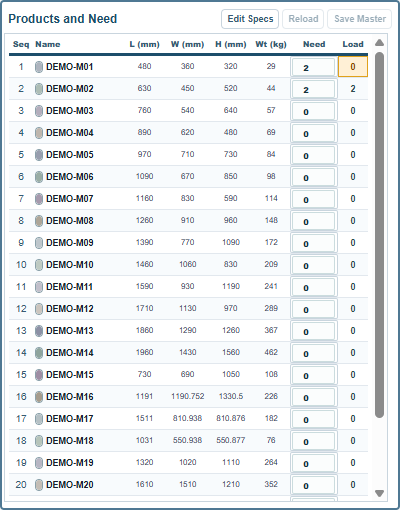
Beside each Need a small mark, +1 ✓ or +1 ×, says whether one more copy of that mold would still fit, so you can see how much room is left without typing. Need belongs to the layout, not to the workbook: it is saved with the layout file and starts at zero in a new layout. The Mold count on the Mold Data tab is a different number, how many of the mold you own, and does not limit what you may ask for here.
Choose the arm in Machines before or after typing; either order gives the same answer, since every change recomputes on the selected arm.
What happens when a number changes
The app keeps every mold that is already on the spiders where it is and looks for room for what changed. Raising a Need by one tries to add one copy without disturbing the others, and the status line beside Solve anew says what came of it: Fits without moving existing molds., Cannot fit; stays staged., or Some added molds fit without moving existing molds; the rest stay staged. Then the app also checks in the background whether a complete rearrangement would place more, and shows that instead when it does: Fits after rearranging existing molds. Undo keeps the new Need and restores the fixed-position result. Lowering a Need takes copies away, waiting copies in the staging area first, Removed without moving other molds., so that mounted molds keep their places whenever they can.
Undo steps back through these changes, one at a time, including the Need you typed; the undo page explains the steps.
Solve anew
Solve anew throws the current arrangement away and lays every requested mold out again from nothing, on the selected arm with the current settings. Use it after you have moved molds by hand and want the app's own answer back for the same request, or when a series of small changes has left an arrangement that a fresh start would improve.

The line reads New solver layout ready. Undo restores the previous draft.: the arrangement you had is one Undo away.
The toolbar

New, Close, Save and Open handle layout files, on the files page. Undo, Redo and Reset layout are for your own changes, on the undo page. Solve anew is above. The line after the buttons is the status of the last edit; at rest it reads Select a mold to move or rotate it.
When a request cannot be met
A request that does not fit is not an error. The molds that found no place wait in the staging area, the status strip says how many were placed and why it stopped, and every number you typed stays as it is. The next page is about reading that.
Comments and questions
The app's rules are our reading of the physics; where your plant knows better, the app changes.